Keyboard & Controls
The emulator uses a 1-to-1 physical mapping to the original ZX Spectrum keys.
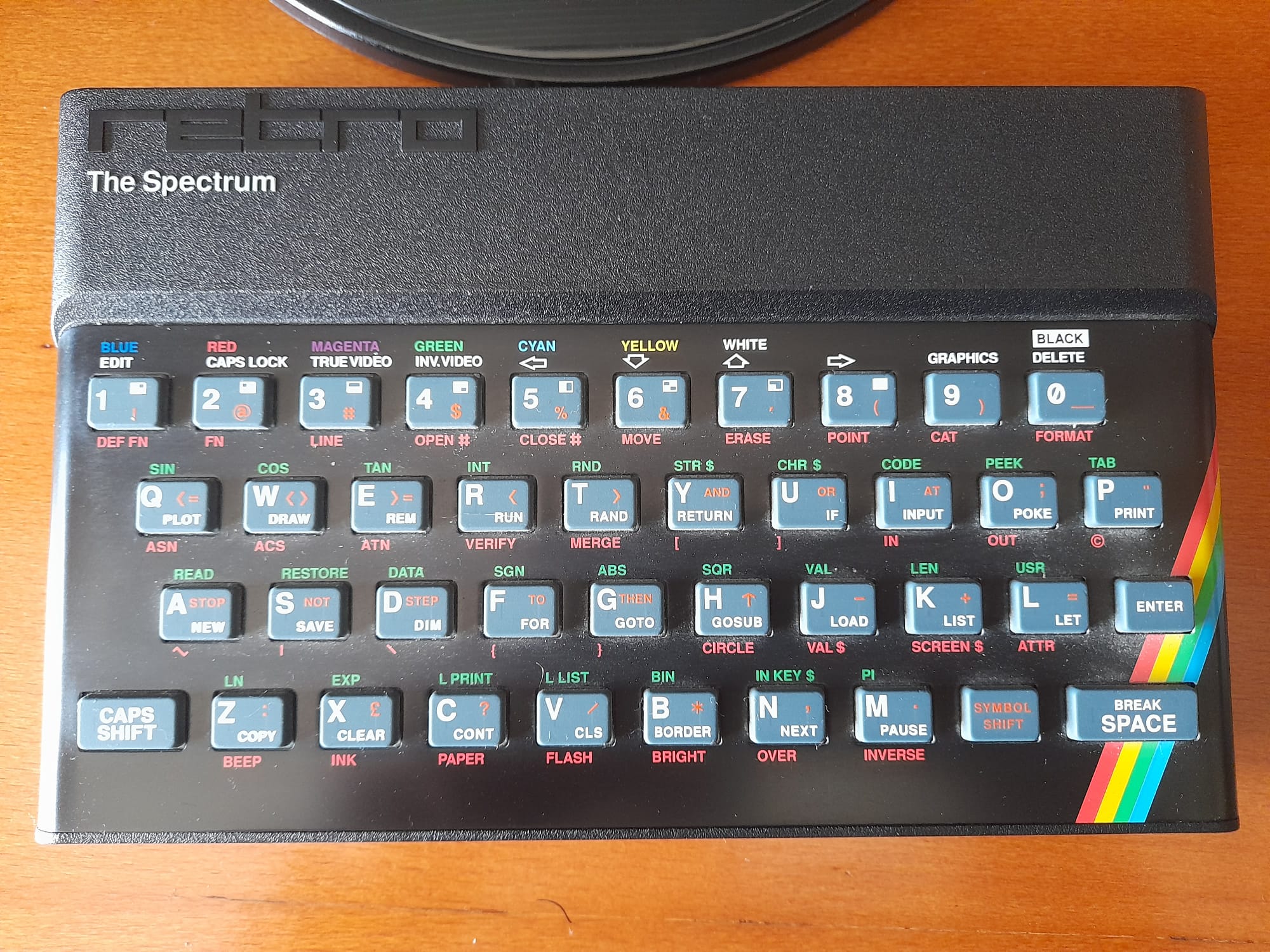
Keyboard Mapping
| PC Key | Spectrum Key | Note |
|---|---|---|
| Left Shift | CAPS SHIFT |
Used for capitalized symbols and secondary functions. |
| Ctrl (Control) | SYMBOL SHIFT |
Used for red symbols (e.g. ,, ., ;). |
| Arrows | 5, 6, 7, 8 |
Mapped to Spectrum cursor keys (or active gaming profile). |
| Backspace | 0 (+ Caps Shift) |
Mapped to the DELETE function (Shift + 0). |
| Enter | ENTER |
Standard Spectrum Enter. |
| Space | SPACE |
Standard Spectrum Space. |
Common Symbols:
- Comma (
,): HoldCtrl+N - Period (
.): HoldCtrl+M - Semicolon (
;): HoldCtrl+O - Quote (
"): HoldCtrl+P
Gaming: Arrow Key Mapping Profiles (New)
You can switch between two arrow key profiles in real-time by pressing the CAPS LOCK key (Main Emulator scenes only):
- PRIMARY MODE (QAOP): Arrows mapped to Q / A / O / P. Fire = Space.
- SECONDARY MODE (Sinclair): Arrows mapped to 7 / 6 / 5 / 8. Fire = 0.
Peripherals (Joystick & Mouse)
- Kempston Joystick: Mapped to the A and B buttons on your gamepad. (Disabled by default).
- Kempston Mouse: The Left Mouse Click acts as the primary fire button.
- Sinclair Joystick: Use the number keys (6-0 for Port 1, 1-5 for Port 2) or Arrows in Secondary Mode.
File Format Support & Exporting
.TAP Optimization
The project is optimized for .tap files to provide the most reliable cassette loading behavior.
Exporting for Desktop (Windows / Linux)
- Go to Project > Export and add a preset (Windows Desktop or Linux/X11).
- Ensure the correct native library is in
bin/. - Set your desired Main Scene (Launcher or Standalone) in Project Settings.
- Export the project.
- Tip: Check the "Embed Pck" option to bundle everything into a single executable file.