Standalone Configuration
The Standalone version of the project is designed for distributing a single game, making it ideal for platforms like Steam or for creating a Web version that loads a specific game automatically.
Changing the Game Path
To change which game the standalone version boots, follow these steps:
Editor Overview
The image below shows the Godot Editor setup for the Standalone scene:
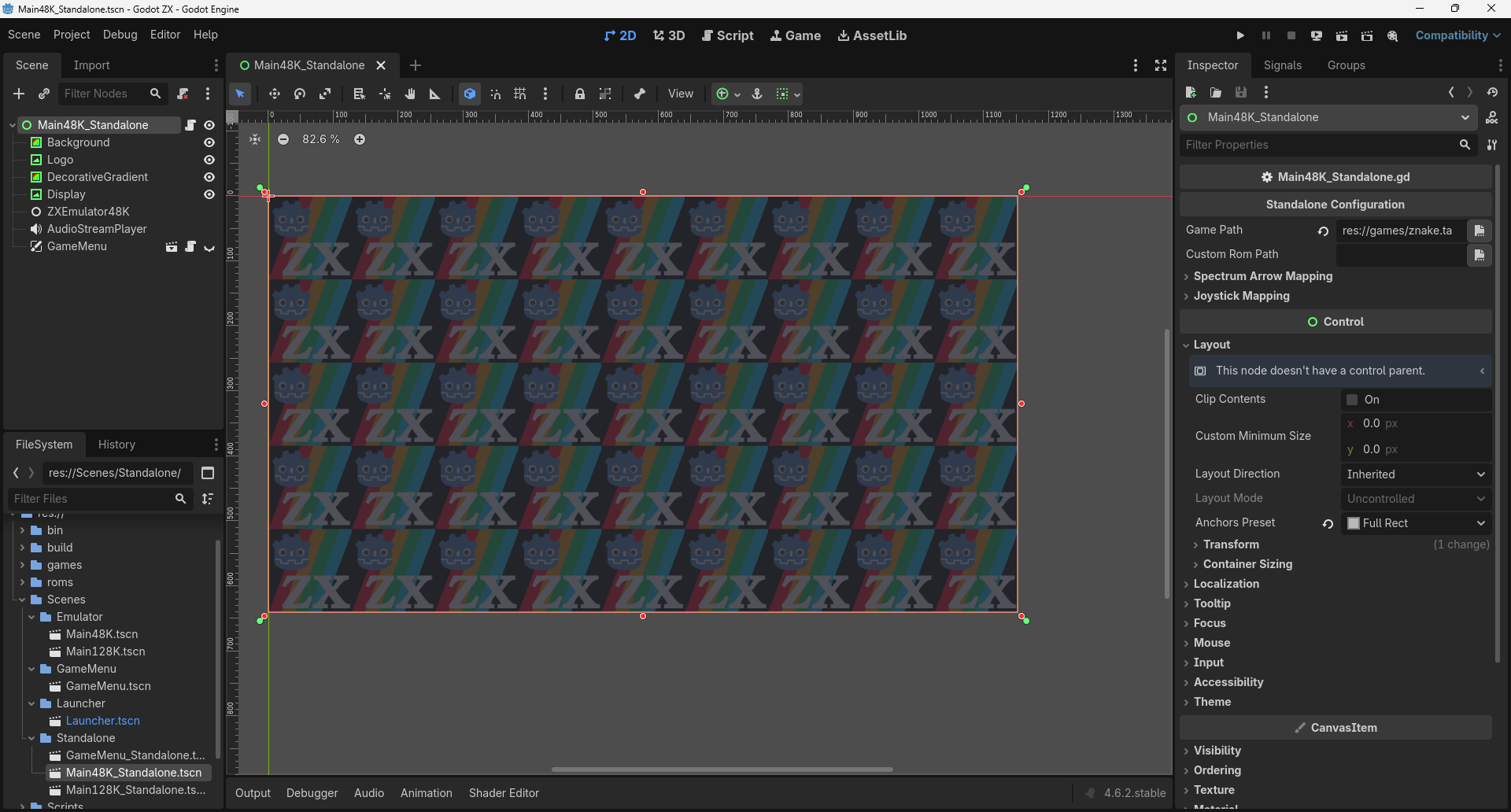
What you see in the image:
- Scene Tree: The
Main48K_Standalone.tscn(orMain128K_Standalone.tscn) is open. - Selected Node: The root node (Main48K_Standalone) is selected.
- Inspector: On the right panel, under the Standalone Configuration category, you find the game configuration fields.
- Game Path: Here you define the path to the local game file (e.g.,
res://games/znake.tap). Only .tap files are supported.
Input & Control Strategy
Unlike the main emulator, the Standalone version uses a Single, Fixed Mapping Profile for simplicity.
- Fixed Configuration: You define the arrow key mapping (e.g., Q/A/O/P) directly in the Inspector.
- No Toggle: The Caps Lock toggle is disabled in this mode to ensure a consistent experience.
Virtual Controls (Itch.io & Mobile)
The project includes a virtual D-pad and Fire Button, perfect for Web versions published on platforms like Itch.io.
Action Mapping
The virtual buttons (of type TouchScreenButton) are linked to the following Godot Input Actions:
- D-pad: Triggers
arrow_up,arrow_down,arrow_left, andarrow_right. - Fire Button: Triggers
zx_fire.
Option: Visibility Mode (TouchScreen Only)
All virtual controls are pre-configured with the Visibility Mode property set to TouchScreen Only in the Godot Inspector.
- How it Works: This native Godot feature makes the buttons invisible on computers and automatically shows them only when the game is launched on a device with a touchscreen interface.
- Advantage: Ensures a clean, full-screen interface for desktop players (Steam) and a functional touch interface for web/mobile players (Itch.io).
Web Autoload (Dynamic Loading)
This feature is ideal for the Web, allowing you to swap games on the server without having to export the project again.
File Structure on the Server
As shown in the image below, for autoload to work, the game file must be in the same folder as the exported Godot files:
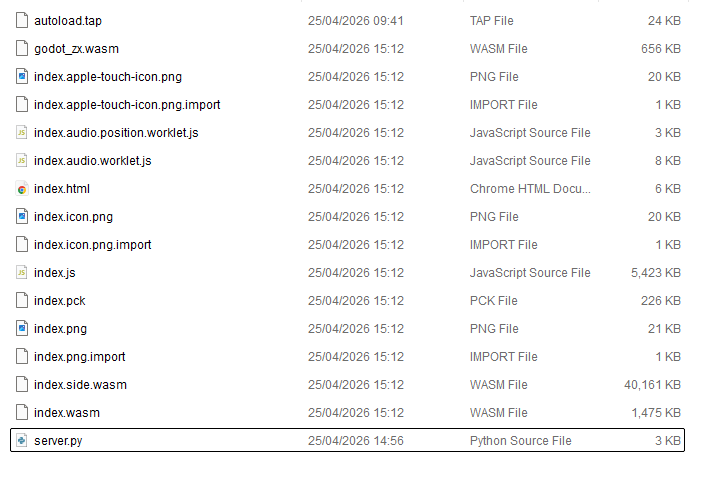
- Main File: The game file must be named exactly
autoload.tap. - Location: It must be at the root of the server, next to
index.htmlandindex.pck. - Server: The
server.pyfile must be present to run the local server with the correct permissions.
How to Enable in Godot
In the Inspector, you can toggle between local and web mode:
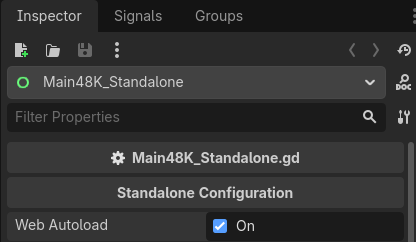
- Enable Web Autoload: Click the Web Autoload checkbox.
- Automatic Effect: As soon as you enable this option, the Game Path field disappears and is cleared automatically.
Web Server for Testing (Python)
Due to modern browser security policies, you must use the included Python server for testing autoload:
# Save as server.py in your build folder
#!/usr/bin/env python3

import argparse
import contextlib
import os
import socket
import subprocess
import sys
from http.server import HTTPServer, SimpleHTTPRequestHandler
from pathlib import Path


# See cpython GH-17851 and GH-17864.
class DualStackServer(HTTPServer):
    def server_bind(self):
        # Suppress exception when protocol is IPv4.
        with contextlib.suppress(Exception):
            self.socket.setsockopt(socket.IPPROTO_IPV6, socket.IPV6_V6ONLY, 0)
        return super().server_bind()


class CORSRequestHandler(SimpleHTTPRequestHandler):
    def end_headers(self):
        self.send_header("Cross-Origin-Opener-Policy", "same-origin")
        self.send_header("Cross-Origin-Embedder-Policy", "require-corp")
        self.send_header("Access-Control-Allow-Origin", "*")
        super().end_headers()


def shell_open(url):
    if sys.platform == "win32":
        os.startfile(url)
    else:
        opener = "open" if sys.platform == "darwin" else "xdg-open"
        subprocess.call([opener, url])


def serve(root, port, run_browser):
    os.chdir(root)

    address = ("", port)
    httpd = DualStackServer(address, CORSRequestHandler)

    url = f"http://127.0.0.1:{port}"
    if run_browser:
        # Open the served page in the user's default browser.
        print(f"Opening the served URL in the default browser (use `--no-browser` or `-n` to disable this): {url}")
        shell_open(url)
    else:
        print(f"Serving at: {url}")

    try:
        httpd.serve_forever()
    except KeyboardInterrupt:
        print("\nKeyboard interrupt received, stopping server.")
    finally:
        # Clean-up server
        httpd.server_close()


if __name__ == "__main__":
    parser = argparse.ArgumentParser()
    parser.add_argument("-p", "--port", help="port to listen on", default=8060, type=int)
    parser.add_argument(
        "-r", "--root", help="path to serve as root (relative to `platform/web/`)", default="../../bin", type=Path
    )
    browser_parser = parser.add_mutually_exclusive_group(required=False)
    browser_parser.add_argument(
        "-n", "--no-browser", help="don't open default web browser automatically", dest="browser", action="store_false"
    )
    parser.set_defaults(browser=True)
    args = parser.parse_args()

    # Change to the directory where the script is located,
    # so that the script can be run from any location.
    os.chdir(Path(__file__).resolve().parent)

    serve(args.root, args.port, args.browser)
# Start the server:
python server.py --port 8060 --root .
Troubleshooting: Clearing Cache in Chrome
If you update the autoload.tap file on the server but the browser continues to load the old game, you must force a cache clear:
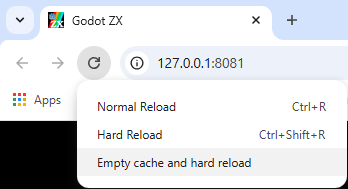
- Open the game in the browser and press F12.
- With the F12 window open, RIGHT-CLICK the Refresh/Reload icon.
- Select the option: "Empty cache and hard reload".